Test your browser config if it launches Zoom automatically with camera and mic enabled

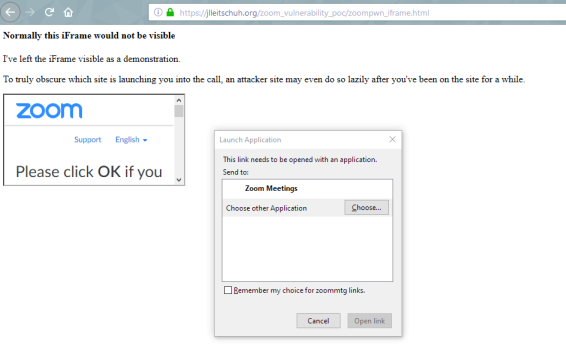
This has been posted to the Technology Taskforce wiki page https://community.icann.org/display/atlarge/Zoom+conferencing+solution - Dev Anand The security researcher Jonathan Leitschuh who publicly disclosed the Zoom security vulnerability has noted that depending on your browser setting on whether to always open Zoom links with the associated app is on, a malicious webpage (that could be hidden in a iframe) can automatically launch Zoom with your camera enabled without asking. This is true for Windows as well as for Mac for Firefox and Chrome browsers. As he noted in his tweet at https://twitter.com/JLLeitschuh/status/1149123386855104516 Here is a Proof of Concept Link to see whether Zoom will autolaunch with your camera and mic enabled : https://jlleitschuh.org/zoom_vulnerability_poc/zoompwn_iframe.html If your browser settings are set to always these type of Zoom links with the associated app, you *will* be automatically launched into a Zoom conference with your camera enabled. How to prevent Zoom from auto-opening Zoom links on a webpage : In Mozilla Firefox, - 1) Click the menu button [image: Fx57Menu] and choose Options. - 2) In the General panel, go to the *Applications* section. 3) Search for the Content Type *zoommtg* and select it. 4) Click on the Action column in the *zoommtg* row to change the action to "*always ask*" /twitter.com/JLLeitschuh/status/114912338685510dsds [image: firefox-turning-off-automatic-open-zoom.png] In Google Chrome: This is harder for Google Chrome which saves such settings in a preferences file which isn't accessible from the browser.
"Chrome allows external applications and web services to open certain links. For example, certain links can open a site like Gmail or a program like iTunes. If you set a default action for a type of link but want to delete it, clear your browsing data <https://support.google.com/chrome/answer/2392709> ( https://support.google.com/chrome/answer/2392709) and select "Cookies and other site data." Here's the more "hacky" way: 1) Navigate to chrome://version/ and find the path listed under "Profile Path". 2) Quit Chrome, open that directory, and then open the "Preferences" file. This will appear be a long line of text in a text editor. 3) Look for the string "zoommtg":false or "zoomrc":false. If it either exist, remove them. If there is a comma immediately after either string, remove it as well. 4) Save the file. Visit Jonathan Leitschuh's Proof of Concept page at * https://jlleitschuh.org/zoom_vulnerability_poc/zoompwn_iframe.html <https://jlleitschuh.org/zoom_vulnerability_poc/zoompwn_iframe.html>* to see if your browser asks to open Zoom. This is what you will see in Mozilla Firefox : [image: firefox-ask-to-launch-zoom.png] and this is what you will see in Google Chrome: [image: chrome-ask-to-launch-zoom.png]


participants (1)
-
 Dev Anand Teelucksingh