
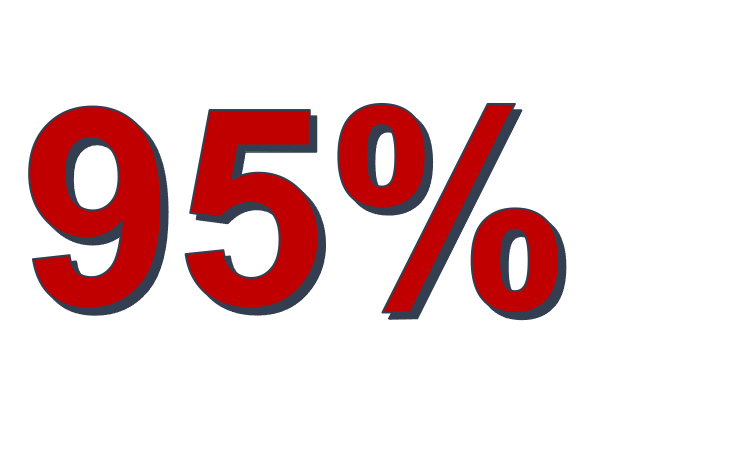
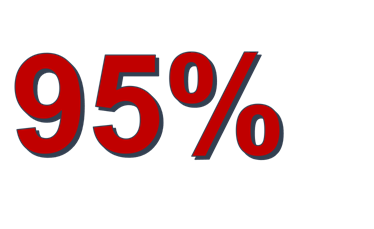
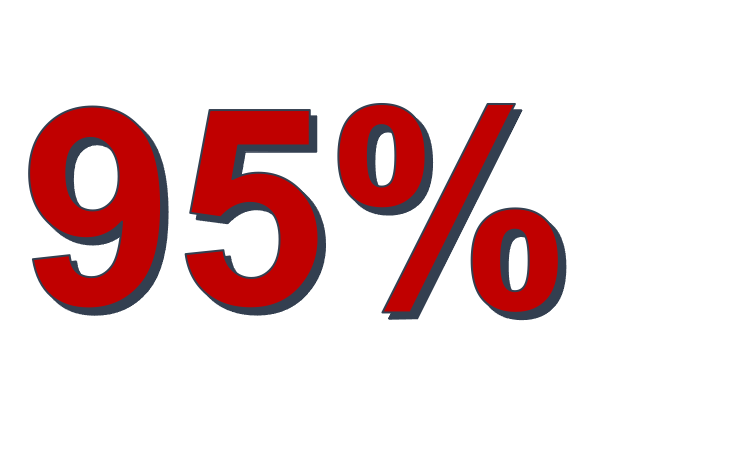
Folks, At the request of “management,” I’m working on a class on PowerPoint and how to use it for Presentations, Videos and Course development but it will be quite a while before it is finished. In the meantime, Maureen asked if I would simply share some presentation tips so, here are some, in rough format. I hope they are helpful. JZ FACTS 1. People cannot listen and read at the same time. Period. Both activities engage the language center of the brain. They will do only one and, more often than not, that's read. If they are reading the same slides you are, then why are you there? 2. Slides should supplement the talk, not the other way around. The big joke is that during EVERY Zoom meeting, people ask if the slides will be available. It's funny first because the answer is ALWAYS yes but, more importantly, your slides should not be able to stand on their own. 3. People CAN absorb pictures and listen at the same time Looking and listening engage different, complimentary, parts of the brain. The best analogy for a good presentation is a documentary film. They generally have narration and visuals. Imagine if Ken Burn's documentary about the American Civil War was a series of PowerPoints with titles and bullets! ADVICE ON SLIDES 1. Only pictures and punchlines 2. 6 words or LESS 3. Bring People Back Ideally, people spend more time looking at you than your slides. This is harder in the virtual world, for sure, especially if there's no video, but consider a blank slide or a picture of yourself as you explain something. Tell people to close their eyes, even! 4. Turn sentences into pictures and punchlines In other words, edit down sentences to the bare minimum to be understood, make numbers Arabic instead of text and make them bigger and different colors than the text. A sentence like “Research shows that ninety-five percent of applications for community priority evaluation failed to gain approval,” could be represented on a slide as [A close up of a sign Description automatically generated] 5. Notes in Notes Section If you wish to include explanations in your slide deck, do it in the notes section. Then they are there for you to use and EVEN available to share by making a PDF of the Notes View, instead of the slide view! Another benefit of putting what you plan to say iin the Notes is that you can often share them with the interpreters in advance. 6. Rehearse It’s the only way you’ll ever know how long your presentation is becoming or whether you’re going to stumble over a particular phrase or simply be at a loss for words. You can use the “Rehearse Timing,” feature under the Slide Show menu.

Thank you very much Jonathan. Very Interesting and visual. I wil put it into practice. Thnak you for your time in sharing your experience. Kisses, Sylvia De: At-Large <at-large-bounces@atlarge-lists.icann.org> Em nome de Jonathan Zuck Enviada em: sábado, 20 de junho de 2020 11:11 Para: At-Large Worldwide <at-large@atlarge-lists.icann.org> Assunto: [At-Large] Presentation Tips Folks, At the request of “management,” I’m working on a class on PowerPoint and how to use it for Presentations, Videos and Course development but it will be quite a while before it is finished. In the meantime, Maureen asked if I would simply share some presentation tips so, here are some, in rough format. I hope they are helpful. JZ FACTS 1. People cannot listen and read at the same time. Period. Both activities engage the language center of the brain. They will do only one and, more often than not, that's read. If they are reading the same slides you are, then why are you there? 2. Slides should supplement the talk, not the other way around. The big joke is that during EVERY Zoom meeting, people ask if the slides will be available. It's funny first because the answer is ALWAYS yes but, more importantly, your slides should not be able to stand on their own. 3. People CAN absorb pictures and listen at the same time Looking and listening engage different, complimentary, parts of the brain. The best analogy for a good presentation is a documentary film. They generally have narration and visuals. Imagine if Ken Burn's documentary about the American Civil War was a series of PowerPoints with titles and bullets! ADVICE ON SLIDES 1. Only pictures and punchlines 2. 6 words or LESS 3. Bring People Back Ideally, people spend more time looking at you than your slides. This is harder in the virtual world, for sure, especially if there's no video, but consider a blank slide or a picture of yourself as you explain something. Tell people to close their eyes, even! 4. Turn sentences into pictures and punchlines In other words, edit down sentences to the bare minimum to be understood, make numbers Arabic instead of text and make them bigger and different colors than the text. A sentence like “Research shows that ninety-five percent of applications for community priority evaluation failed to gain approval,” could be represented on a slide as 5. Notes in Notes Section If you wish to include explanations in your slide deck, do it in the notes section. Then they are there for you to use and EVEN available to share by making a PDF of the Notes View, instead of the slide view! Another benefit of putting what you plan to say iin the Notes is that you can often share them with the interpreters in advance. 6. Rehearse It’s the only way you’ll ever know how long your presentation is becoming or whether you’re going to stumble over a particular phrase or simply be at a loss for words. You can use the “Rehearse Timing,” feature under the Slide Show menu.

Good Points, I have used many similar methods when I have presentations, this came about a few years ago when I watched this gentleman presentation on the mental bits of powerpoint and presentations in general. This may be of some use for others. https://youtu.be/Iwpi1Lm6dFo Best Regards, Niran Beharry On Sat, Jun 20, 2020 at 10:20 AM <sylvia@prontocl.com.br> wrote:
Thank you very much Jonathan. Very Interesting and visual. I wil put it into practice.
Thnak you for your time in sharing your experience.
Kisses,
Sylvia
*De:* At-Large <at-large-bounces@atlarge-lists.icann.org> *Em nome de *Jonathan Zuck *Enviada em:* sábado, 20 de junho de 2020 11:11 *Para:* At-Large Worldwide <at-large@atlarge-lists.icann.org> *Assunto:* [At-Large] Presentation Tips
Folks,
At the request of “management,” I’m working on a class on PowerPoint and how to use it for Presentations, Videos and Course development but it will be quite a while before it is finished. In the meantime, Maureen asked if I would simply share some presentation tips so, here are some, in rough format. I hope they are helpful. JZ
*FACTS*
1. *People cannot listen and read at the same time.* Period. Both activities engage the language center of the brain. They will do only one and, more often than not, that's read. If they are reading the same slides you are, then why are you there? 2. *Slides should supplement the talk, not the other way around.* The big joke is that during EVERY Zoom meeting, people ask if the slides will be available. It's funny first because the answer is ALWAYS yes but, more importantly, your slides should not be able to stand on their own. 3. *People CAN absorb pictures and listen at the same time* Looking and listening engage different, complimentary, parts of the brain. The best analogy for a good presentation is a documentary film. They generally have narration and visuals. Imagine if Ken Burn's documentary about the American Civil War was a series of PowerPoints with titles and bullets!
*ADVICE ON SLIDES*
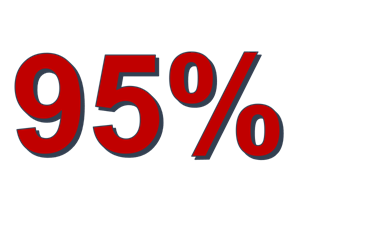
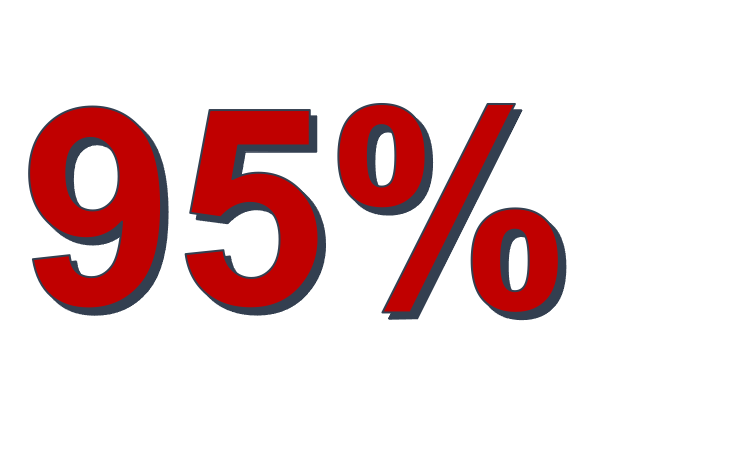
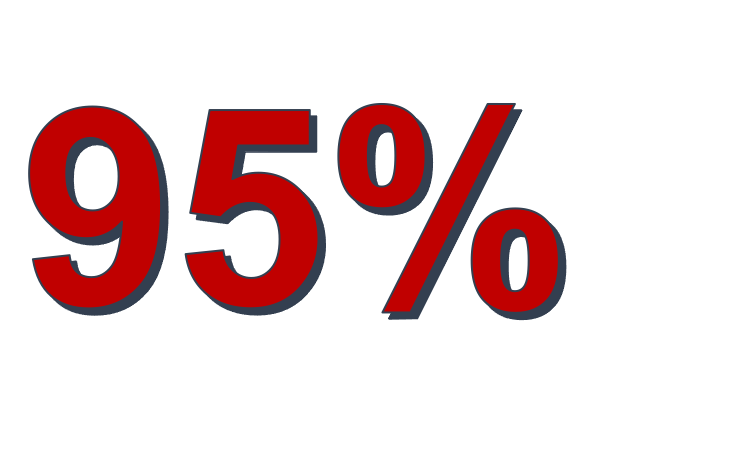
1. *Only pictures and punchlines* 2. *6 words or LESS* 3. *Bring People Back* Ideally, people spend more time looking at you than your slides. This is harder in the virtual world, for sure, especially if there's no video, but consider a blank slide or a picture of yourself as you explain something. Tell people to close their eyes, even! 4. *Turn sentences into pictures and punchlines* In other words, edit down sentences to the bare minimum to be understood, make numbers Arabic instead of text and make them bigger and different colors than the text. A sentence like “Research shows that ninety-five percent of applications for community priority evaluation failed to gain approval,” could be represented on a slide as [image: A close up of a sign Description automatically generated] 5. *Notes in Notes Section* If you wish to include explanations in your slide deck, do it in the notes section. Then they are there for you to use and EVEN available to share by making a PDF of the Notes View, instead of the slide view! Another benefit of putting what you plan to say iin the Notes is that you can often share them with the interpreters in advance. 6. *Rehearse It’s the only way you’ll ever know how long your presentation is becoming or whether you’re going to stumble over a particular phrase or simply be at a loss for words. You can use the “Rehearse Timing,” feature under the Slide Show menu.*
_______________________________________________ At-Large mailing list At-Large@atlarge-lists.icann.org https://atlarge-lists.icann.org/mailman/listinfo/at-large
At-Large Official Site: http://atlarge.icann.org _______________________________________________ By submitting your personal data, you consent to the processing of your personal data for purposes of subscribing to this mailing list accordance with the ICANN Privacy Policy (https://www.icann.org/privacy/policy) and the website Terms of Service (https://www.icann.org/privacy/tos). You can visit the Mailman link above to change your membership status or configuration, including unsubscribing, setting digest-style delivery or disabling delivery altogether (e.g., for a vacation), and so on.


Great tips Jonathan -- but we can't just take images from the web and stick them on powerpoints destined for a world wide audience and which will continue to exist in archives. Got a solution for that? Marita On 6/20/2020 10:10 AM, Jonathan Zuck wrote:
Folks,
At the request of “management,” I’m working on a class on PowerPoint and how to use it for Presentations, Videos and Course development but it will be quite a while before it is finished. In the meantime, Maureen asked if I would simply share some presentation tips so, here are some, in rough format. I hope they are helpful. JZ
*FACTS*
1. *People cannot listen and read at the same time.* Period. Both activities engage the language center of the brain. They will do only one and, more often than not, that's read. If they are reading the same slides you are, then why are you there?
2. *Slides should supplement the talk, not the other way around.* The big joke is that during EVERY Zoom meeting, people ask if the slides will be available. It's funny first because the answer is ALWAYS yes but, more importantly, your slides should not be able to stand on their own.
3. *People CAN absorb pictures and listen at the same time* Looking and listening engage different, complimentary, parts of the brain. The best analogy for a good presentation is a documentary film. They generally have narration and visuals. Imagine if Ken Burn's documentary about the American Civil War was a series of PowerPoints with titles and bullets!
*ADVICE ON SLIDES*
1. *Only pictures and punchlines
* 2. *6 words or LESS
* 3. *Bring People Back* Ideally, people spend more time looking at you than your slides. This is harder in the virtual world, for sure, especially if there's no video, but consider a blank slide or a picture of yourself as you explain something. Tell people to close their eyes, even!
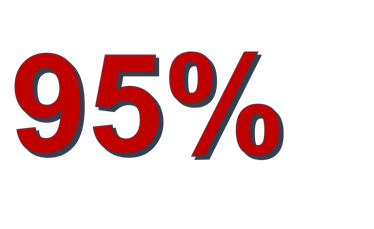
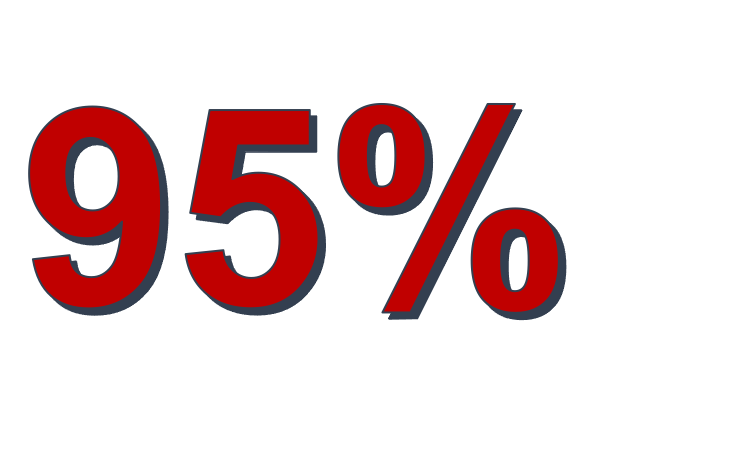
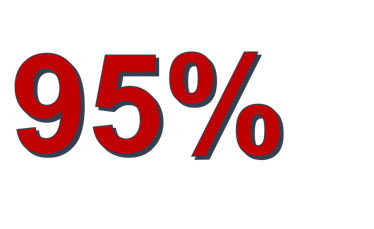
4. *Turn sentences into pictures and punchlines* In other words, edit down sentences to the bare minimum to be understood, make numbers Arabic instead of text and make them bigger and different colors than the text. A sentence like “Research shows that ninety-five percent of applications for community priority evaluation failed to gain approval,” could be represented on a slide as A close up of a sign Description automatically generated 5. *Notes in Notes Section* If you wish to include explanations in your slide deck, do it in the notes section. Then they are there for you to use and EVEN available to share by making a PDF of the Notes View, instead of the slide view! Another benefit of putting what you plan to say iin the Notes is that you can often share them with the interpreters in advance.
6. *Rehearse It’s the only way you’ll ever know how long your presentation is becoming or whether you’re going to stumble over a particular phrase or simply be at a loss for words. You can use the “Rehearse Timing,” feature under the Slide Show menu.*
_______________________________________________ At-Large mailing list At-Large@atlarge-lists.icann.org https://atlarge-lists.icann.org/mailman/listinfo/at-large
At-Large Official Site: http://atlarge.icann.org _______________________________________________ By submitting your personal data, you consent to the processing of your personal data for purposes of subscribing to this mailing list accordance with the ICANN Privacy Policy (https://www.icann.org/privacy/policy) and the website Terms of Service (https://www.icann.org/privacy/tos). You can visit the Mailman link above to change your membership status or configuration, including unsubscribing, setting digest-style delivery or disabling delivery altogether (e.g., for a vacation), and so on.

On Sat, 20 Jun 2020 at 11:16, Marita Moll <mmoll@ca.inter.net> wrote:
Great tips Jonathan -- but we can't just take images from the web and stick them on powerpoints destined for a world wide audience and which will continue to exist in archives.
Why not? It depends on your source. Getting stuff randomly off the net doesn't make something sustainable, but it can if you: - Download the image(s) and insert/embed rather than link; - Ask permission from the creator (if possible) or - Use one of the many <https://unsplash.com/> sources <https://pixabay.com/> of royalty-free <https://www.pexels.com/> photos <https://www.freeimages.com/> and graphics <https://www.openclipart.org/> . As for a worldwide audience, that's a factor when selecting images in the first place so they're widely understood during your presentation as well as archived. For me, I try when possible to stick to the tried-and-true 10-20-30 rule for presentations <https://guykawasaki.com/the_102030_rule/> created by VC maven Guy Kawasaki. The rule means that presentations should *NOT*: - Have more than 10 slides - Be longer than 20 minutes - Have a font size smaller than 30 point. While originally designed as instruction how a startup can best make a pitch to investors, the rule is widely applicable as it considers the purpose of slides (to support the presentation rather than BE it) and the audience's attention span and ability to digest new information. While coined in 2005, the rule has stood the test of time <https://www.slidegenius.com/blog/guy-kawasakis-10-20-30-rule-presentation> and is just as, if not more relevant now as then. When I find in preparation that a presentation exceeds 20 minutes or 10 slides, I'll insert at a logical point a 5-10 minute rest -- Q&A, bathroom break, whatever -- before starting the next set. I'm not always able to hold steadfast to the rule but I always consider it and better have a good reason for exceeding. It's served me well. Evan Leibovitch, Toronto Canada @evanleibovitch / @el56
Yep, famous advice from Guy! Thanks for the reminder, Evan! From: At-Large <at-large-bounces@atlarge-lists.icann.org> on behalf of Evan Leibovitch <evan@telly.org> Date: Saturday, June 20, 2020 at 9:01 AM To: Marita Moll <mmoll@ca.inter.net> Cc: ICANN At-Large list <at-large@atlarge-lists.icann.org> Subject: Re: [At-Large] Presentation Tips On Sat, 20 Jun 2020 at 11:16, Marita Moll <mmoll@ca.inter.net<mailto:mmoll@ca.inter.net>> wrote: Great tips Jonathan -- but we can't just take images from the web and stick them on powerpoints destined for a world wide audience and which will continue to exist in archives. Why not? It depends on your source. Getting stuff randomly off the net doesn't make something sustainable, but it can if you: * Download the image(s) and insert/embed rather than link; * Ask permission from the creator (if possible) or * Use one of the many<https://unsplash.com/> sources<https://pixabay.com/> of royalty-free<https://www.pexels.com/> photos<https://www.freeimages.com/> and graphics<https://www.openclipart.org/>. As for a worldwide audience, that's a factor when selecting images in the first place so they're widely understood during your presentation as well as archived. For me, I try when possible to stick to the tried-and-true 10-20-30 rule for presentations<https://guykawasaki.com/the_102030_rule/> created by VC maven Guy Kawasaki. The rule means that presentations should NOT: * Have more than 10 slides * Be longer than 20 minutes * Have a font size smaller than 30 point. While originally designed as instruction how a startup can best make a pitch to investors, the rule is widely applicable as it considers the purpose of slides (to support the presentation rather than BE it) and the audience's attention span and ability to digest new information. While coined in 2005, the rule has stood the test of time<https://www.slidegenius.com/blog/guy-kawasakis-10-20-30-rule-presentation> and is just as, if not more relevant now as then. When I find in preparation that a presentation exceeds 20 minutes or 10 slides, I'll insert at a logical point a 5-10 minute rest -- Q&A, bathroom break, whatever -- before starting the next set. I'm not always able to hold steadfast to the rule but I always consider it and better have a good reason for exceeding. It's served me well. Evan Leibovitch, Toronto Canada @evanleibovitch / @el56
Yep. As Joanna will tell you, I’m a huge proponent of copyright so wouldn’t council you to infringe! Working on a list of resources for the class but here’s a start: https://ccsearch.creativecommons.org/ https://www.freepik.com/ https://unsplash.com/ https://pixabay.com/ https://www.freeimages.com/ https://www.pexels.com/royalty-free-images https://search.usa.gov/search/images?affiliate=usagov&query= https://images.nasa.gov/ this is a special HP collection of empowered women https://www.imagesofempowerment.org/ From: At-Large <at-large-bounces@atlarge-lists.icann.org> on behalf of Marita Moll <mmoll@ca.inter.net> Date: Saturday, June 20, 2020 at 8:16 AM To: "at-large@atlarge-lists.icann.org" <at-large@atlarge-lists.icann.org> Subject: Re: [At-Large] Presentation Tips Great tips Jonathan -- but we can't just take images from the web and stick them on powerpoints destined for a world wide audience and which will continue to exist in archives. Got a solution for that? Marita On 6/20/2020 10:10 AM, Jonathan Zuck wrote: Folks, At the request of “management,” I’m working on a class on PowerPoint and how to use it for Presentations, Videos and Course development but it will be quite a while before it is finished. In the meantime, Maureen asked if I would simply share some presentation tips so, here are some, in rough format. I hope they are helpful. JZ FACTS 1. People cannot listen and read at the same time. Period. Both activities engage the language center of the brain. They will do only one and, more often than not, that's read. If they are reading the same slides you are, then why are you there? 2. Slides should supplement the talk, not the other way around. The big joke is that during EVERY Zoom meeting, people ask if the slides will be available. It's funny first because the answer is ALWAYS yes but, more importantly, your slides should not be able to stand on their own. 3. People CAN absorb pictures and listen at the same time Looking and listening engage different, complimentary, parts of the brain. The best analogy for a good presentation is a documentary film. They generally have narration and visuals. Imagine if Ken Burn's documentary about the American Civil War was a series of PowerPoints with titles and bullets! ADVICE ON SLIDES 1. Only pictures and punchlines 2. 6 words or LESS 3. Bring People Back Ideally, people spend more time looking at you than your slides. This is harder in the virtual world, for sure, especially if there's no video, but consider a blank slide or a picture of yourself as you explain something. Tell people to close their eyes, even! 4. Turn sentences into pictures and punchlines In other words, edit down sentences to the bare minimum to be understood, make numbers Arabic instead of text and make them bigger and different colors than the text. A sentence like “Research shows that ninety-five percent of applications for community priority evaluation failed to gain approval,” could be represented on a slide as [A close up of a sign Description automatically generated] 5. Notes in Notes Section If you wish to include explanations in your slide deck, do it in the notes section. Then they are there for you to use and EVEN available to share by making a PDF of the Notes View, instead of the slide view! Another benefit of putting what you plan to say iin the Notes is that you can often share them with the interpreters in advance. 6. Rehearse It’s the only way you’ll ever know how long your presentation is becoming or whether you’re going to stumble over a particular phrase or simply be at a loss for words. You can use the “Rehearse Timing,” feature under the Slide Show menu. _______________________________________________ At-Large mailing list At-Large@atlarge-lists.icann.org<mailto:At-Large@atlarge-lists.icann.org> https://atlarge-lists.icann.org/mailman/listinfo/at-large At-Large Official Site: http://atlarge.icann.org _______________________________________________ By submitting your personal data, you consent to the processing of your personal data for purposes of subscribing to this mailing list accordance with the ICANN Privacy Policy (https://www.icann.org/privacy/policy) and the website Terms of Service (https://www.icann.org/privacy/tos). You can visit the Mailman link above to change your membership status or configuration, including unsubscribing, setting digest-style delivery or disabling delivery altogether (e.g., for a vacation), and so on.
Thanks for doing this, Jonathan. On Sat, 20 Jun 2020 at 12:01, Jonathan Zuck <JZuck@innovatorsnetwork.org> wrote:
1. *Slides should supplement the talk, not the other way around.*
I don't think this can be emphasized enough. I've sat through a mind-boggling number of presentations in which the slides are either the whole presentation, or detailed speaker notes. It usually indicates poor preparation and the presenter's use of the slides to lean on. Here are some random other thoughts based on presentations that have stood out... - A superb presentation slide may ask an overarching question that's not even spoken, but is provoked by what the speaker said. Or at very least a slide can ask questions that the presentation will answer. - A summary slide that collects the larger thoughts just presented can be helpful to some people. - Always have left on the screen at the end, contact info for the benefit of audience members who can't (or are too shy to) engage in group Q&A but still want to follow up - Avoid jargon and slang unless you REALLY know the audience. You never know who in your audience is new to the concepts and/or does not speak your language natively - Occasional lightness is fine but go easy on the funny photos. Overdosing on forced humour does not help your message.
1. The big joke is that during EVERY Zoom meeting, people ask if the slides will be available. It's funny first because the answer is ALWAYS yes but, more importantly, your slides should not be able to stand on their own.
I actually think there is going to be a growing discipline and design discussion regarding doing virtual presentations, where your "shared screen" presentation dominates the audiences' screens and nothing else can be seen. No chance for eye contact, facial expressions or other visual cues. I think this may even have a long term effect on how presentations are done, we've barely started down this path.
*ADVICE ON SLIDES*
1. *Only pictures and punchlines * 2. *6 words or LESS *
This kind of presentation is great, punchy and engaging. Usually there is no corporate slide template and the text is light text on black background to maximize impact. Best examples of these that I've seen have been at TED talks. When it works it's GREAT but, Jonathan, frankly I don't think everyone can pull it off. It requires showmanship and a sense of timing and not every presenter does that easily. Plus, not every presentation lends itself well to this style (think ICANN WG updates!) And when this style is tried and fails, it fails BADLY for both presenter and audience.
1. *Rehearse It’s the only way you’ll ever know how long your presentation is becoming or whether you’re going to stumble over a particular phrase or simply be at a loss for words. You can use the “Rehearse Timing,” feature under the Slide Show menu.*
Oh heavens yes. Can't ask for this enough. - Evan
And Getty allows you to freely embed images on blogs and website. Haven’t tried it with slides thought https://www.gettyimages.com/resources/embed From: At-Large <at-large-bounces@atlarge-lists.icann.org> on behalf of Marita Moll <mmoll@ca.inter.net> Date: Saturday, June 20, 2020 at 8:16 AM To: "at-large@atlarge-lists.icann.org" <at-large@atlarge-lists.icann.org> Subject: Re: [At-Large] Presentation Tips Great tips Jonathan -- but we can't just take images from the web and stick them on powerpoints destined for a world wide audience and which will continue to exist in archives. Got a solution for that? Marita On 6/20/2020 10:10 AM, Jonathan Zuck wrote: Folks, At the request of “management,” I’m working on a class on PowerPoint and how to use it for Presentations, Videos and Course development but it will be quite a while before it is finished. In the meantime, Maureen asked if I would simply share some presentation tips so, here are some, in rough format. I hope they are helpful. JZ FACTS 1. People cannot listen and read at the same time. Period. Both activities engage the language center of the brain. They will do only one and, more often than not, that's read. If they are reading the same slides you are, then why are you there? 2. Slides should supplement the talk, not the other way around. The big joke is that during EVERY Zoom meeting, people ask if the slides will be available. It's funny first because the answer is ALWAYS yes but, more importantly, your slides should not be able to stand on their own. 3. People CAN absorb pictures and listen at the same time Looking and listening engage different, complimentary, parts of the brain. The best analogy for a good presentation is a documentary film. They generally have narration and visuals. Imagine if Ken Burn's documentary about the American Civil War was a series of PowerPoints with titles and bullets! ADVICE ON SLIDES 1. Only pictures and punchlines 2. 6 words or LESS 3. Bring People Back Ideally, people spend more time looking at you than your slides. This is harder in the virtual world, for sure, especially if there's no video, but consider a blank slide or a picture of yourself as you explain something. Tell people to close their eyes, even! 4. Turn sentences into pictures and punchlines In other words, edit down sentences to the bare minimum to be understood, make numbers Arabic instead of text and make them bigger and different colors than the text. A sentence like “Research shows that ninety-five percent of applications for community priority evaluation failed to gain approval,” could be represented on a slide as [A close up of a sign Description automatically generated] 5. Notes in Notes Section If you wish to include explanations in your slide deck, do it in the notes section. Then they are there for you to use and EVEN available to share by making a PDF of the Notes View, instead of the slide view! Another benefit of putting what you plan to say iin the Notes is that you can often share them with the interpreters in advance. 6. Rehearse It’s the only way you’ll ever know how long your presentation is becoming or whether you’re going to stumble over a particular phrase or simply be at a loss for words. You can use the “Rehearse Timing,” feature under the Slide Show menu. _______________________________________________ At-Large mailing list At-Large@atlarge-lists.icann.org<mailto:At-Large@atlarge-lists.icann.org> https://atlarge-lists.icann.org/mailman/listinfo/at-large At-Large Official Site: http://atlarge.icann.org _______________________________________________ By submitting your personal data, you consent to the processing of your personal data for purposes of subscribing to this mailing list accordance with the ICANN Privacy Policy (https://www.icann.org/privacy/policy) and the website Terms of Service (https://www.icann.org/privacy/tos). You can visit the Mailman link above to change your membership status or configuration, including unsubscribing, setting digest-style delivery or disabling delivery altogether (e.g., for a vacation), and so on.

Marita: You can use them under the fair use clause of the US Copyright Law (this may apply in US only) which means that you can use them for things like teaching or illustrating a concept. -ed On Sat, Jun 20, 2020 at 11:16 AM Marita Moll <mmoll@ca.inter.net> wrote:
Great tips Jonathan -- but we can't just take images from the web and stick them on powerpoints destined for a world wide audience and which will continue to exist in archives. Got a solution for that?
Marita On 6/20/2020 10:10 AM, Jonathan Zuck wrote:
Folks,
At the request of “management,” I’m working on a class on PowerPoint and how to use it for Presentations, Videos and Course development but it will be quite a while before it is finished. In the meantime, Maureen asked if I would simply share some presentation tips so, here are some, in rough format. I hope they are helpful. JZ
*FACTS*
1. *People cannot listen and read at the same time.* Period. Both activities engage the language center of the brain. They will do only one and, more often than not, that's read. If they are reading the same slides you are, then why are you there?
2. *Slides should supplement the talk, not the other way around.* The big joke is that during EVERY Zoom meeting, people ask if the slides will be available. It's funny first because the answer is ALWAYS yes but, more importantly, your slides should not be able to stand on their own.
3. *People CAN absorb pictures and listen at the same time* Looking and listening engage different, complimentary, parts of the brain. The best analogy for a good presentation is a documentary film. They generally have narration and visuals. Imagine if Ken Burn's documentary about the American Civil War was a series of PowerPoints with titles and bullets!
*ADVICE ON SLIDES*
1.
*Only pictures and punchlines * 2.
*6 words or LESS * 3. *Bring People Back* Ideally, people spend more time looking at you than your slides. This is harder in the virtual world, for sure, especially if there's no video, but consider a blank slide or a picture of yourself as you explain something. Tell people to close their eyes, even!
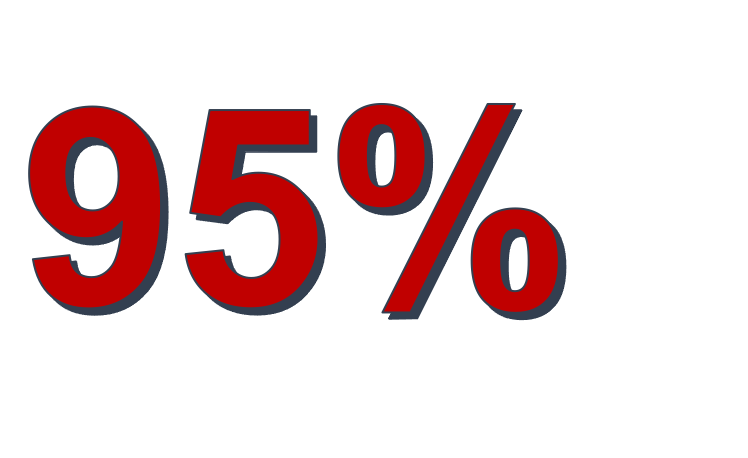
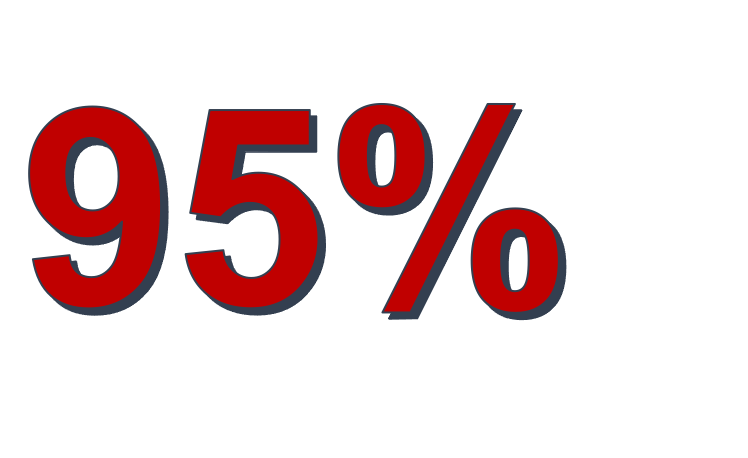
4. *Turn sentences into pictures and punchlines* In other words, edit down sentences to the bare minimum to be understood, make numbers Arabic instead of text and make them bigger and different colors than the text. A sentence like “Research shows that ninety-five percent of applications for community priority evaluation failed to gain approval,” could be represented on a slide as [image: A close up of a sign Description automatically generated] 5. *Notes in Notes Section* If you wish to include explanations in your slide deck, do it in the notes section. Then they are there for you to use and EVEN available to share by making a PDF of the Notes View, instead of the slide view! Another benefit of putting what you plan to say iin the Notes is that you can often share them with the interpreters in advance.
6. *Rehearse It’s the only way you’ll ever know how long your presentation is becoming or whether you’re going to stumble over a particular phrase or simply be at a loss for words. You can use the “Rehearse Timing,” feature under the Slide Show menu.*
_______________________________________________ At-Large mailing listAt-Large@atlarge-lists.icann.orghttps://atlarge-lists.icann.org/mailman/listinfo/at-large
At-Large Official Site: http://atlarge.icann.org _______________________________________________ By submitting your personal data, you consent to the processing of your personal data for purposes of subscribing to this mailing list accordance with the ICANN Privacy Policy (https://www.icann.org/privacy/policy) and the website Terms of Service (https://www.icann.org/privacy/tos). You can visit the Mailman link above to change your membership status or configuration, including unsubscribing, setting digest-style delivery or disabling delivery altogether (e.g., for a vacation), and so on.
_______________________________________________ At-Large mailing list At-Large@atlarge-lists.icann.org https://atlarge-lists.icann.org/mailman/listinfo/at-large
At-Large Official Site: http://atlarge.icann.org _______________________________________________ By submitting your personal data, you consent to the processing of your personal data for purposes of subscribing to this mailing list accordance with the ICANN Privacy Policy (https://www.icann.org/privacy/policy) and the website Terms of Service (https://www.icann.org/privacy/tos). You can visit the Mailman link above to change your membership status or configuration, including unsubscribing, setting digest-style delivery or disabling delivery altogether (e.g., for a vacation), and so on.
-- *NOTICE:* This email may contain information which is confidential and/or subject to legal privilege, and is intended for the use of the named addressee only. If you are not the intended recipient, you must not use, disclose or copy any part of this email. If you have received this email by mistake, please notify the sender and delete this message immediately.

That is not an accurate summary of the fair use doctrine in the U.S. The doctrine is much more narrow than that. From: At-Large <at-large-bounces@atlarge-lists.icann.org> On Behalf Of Eduardo Diaz Sent: Saturday, June 20, 2020 8:58 AM To: Marita Moll <mmoll@ca.inter.net> Cc: At-Large Worldwide <at-large@atlarge-lists.icann.org> Subject: Re: [At-Large] Presentation Tips Marita: You can use them under the fair use clause of the US Copyright Law (this may apply in US only) which means that you can use them for things like teaching or illustrating a concept. -ed On Sat, Jun 20, 2020 at 11:16 AM Marita Moll <mmoll@ca.inter.net <mailto:mmoll@ca.inter.net> > wrote: Great tips Jonathan -- but we can't just take images from the web and stick them on powerpoints destined for a world wide audience and which will continue to exist in archives. Got a solution for that? Marita On 6/20/2020 10:10 AM, Jonathan Zuck wrote: Folks, At the request of “management,” I’m working on a class on PowerPoint and how to use it for Presentations, Videos and Course development but it will be quite a while before it is finished. In the meantime, Maureen asked if I would simply share some presentation tips so, here are some, in rough format. I hope they are helpful. JZ FACTS 1. People cannot listen and read at the same time. Period. Both activities engage the language center of the brain. They will do only one and, more often than not, that's read. If they are reading the same slides you are, then why are you there? 2. Slides should supplement the talk, not the other way around. The big joke is that during EVERY Zoom meeting, people ask if the slides will be available. It's funny first because the answer is ALWAYS yes but, more importantly, your slides should not be able to stand on their own. 3. People CAN absorb pictures and listen at the same time Looking and listening engage different, complimentary, parts of the brain. The best analogy for a good presentation is a documentary film. They generally have narration and visuals. Imagine if Ken Burn's documentary about the American Civil War was a series of PowerPoints with titles and bullets! ADVICE ON SLIDES 1. Only pictures and punchlines 2. 6 words or LESS 3. Bring People Back Ideally, people spend more time looking at you than your slides. This is harder in the virtual world, for sure, especially if there's no video, but consider a blank slide or a picture of yourself as you explain something. Tell people to close their eyes, even! 4. Turn sentences into pictures and punchlines In other words, edit down sentences to the bare minimum to be understood, make numbers Arabic instead of text and make them bigger and different colors than the text. A sentence like “Research shows that ninety-five percent of applications for community priority evaluation failed to gain approval,” could be represented on a slide as 5. Notes in Notes Section If you wish to include explanations in your slide deck, do it in the notes section. Then they are there for you to use and EVEN available to share by making a PDF of the Notes View, instead of the slide view! Another benefit of putting what you plan to say iin the Notes is that you can often share them with the interpreters in advance. 6. Rehearse It’s the only way you’ll ever know how long your presentation is becoming or whether you’re going to stumble over a particular phrase or simply be at a loss for words. You can use the “Rehearse Timing,” feature under the Slide Show menu. _______________________________________________ At-Large mailing list At-Large@atlarge-lists.icann.org <mailto:At-Large@atlarge-lists.icann.org> https://atlarge-lists.icann.org/mailman/listinfo/at-large At-Large Official Site: http://atlarge.icann.org _______________________________________________ By submitting your personal data, you consent to the processing of your personal data for purposes of subscribing to this mailing list accordance with the ICANN Privacy Policy (https://www.icann.org/privacy/policy) and the website Terms of Service (https://www.icann.org/privacy/tos). You can visit the Mailman link above to change your membership status or configuration, including unsubscribing, setting digest-style delivery or disabling delivery altogether (e.g., for a vacation), and so on. _______________________________________________ At-Large mailing list At-Large@atlarge-lists.icann.org <mailto:At-Large@atlarge-lists.icann.org> https://atlarge-lists.icann.org/mailman/listinfo/at-large At-Large Official Site: http://atlarge.icann.org _______________________________________________ By submitting your personal data, you consent to the processing of your personal data for purposes of subscribing to this mailing list accordance with the ICANN Privacy Policy (https://www.icann.org/privacy/policy) and the website Terms of Service (https://www.icann.org/privacy/tos). You can visit the Mailman link above to change your membership status or configuration, including unsubscribing, setting digest-style delivery or disabling delivery altogether (e.g., for a vacation), and so on. -- NOTICE: This email may contain information which is confidential and/or subject to legal privilege, and is intended for the use of the named addressee only. If you are not the intended recipient, you must not use, disclose or copy any part of this email. If you have received this email by mistake, please notify the sender and delete this message immediately.
Exactly Jonathan Zuck Executive Director Innovators Network Foundation www.InnovatorsNetwork.org<http://www.InnovatorsNetwork.org> ________________________________ From: At-Large <at-large-bounces@atlarge-lists.icann.org> on behalf of Seth M. Reiss <seth.reiss@lex-ip.com> Sent: Saturday, June 20, 2020 12:18:22 PM To: 'Eduardo Diaz' <eduardodiazrivera@gmail.com>; 'Marita Moll' <mmoll@ca.inter.net> Cc: 'At-Large Worldwide' <at-large@atlarge-lists.icann.org> Subject: Re: [At-Large] Presentation Tips That is not an accurate summary of the fair use doctrine in the U.S. The doctrine is much more narrow than that. From: At-Large <at-large-bounces@atlarge-lists.icann.org> On Behalf Of Eduardo Diaz Sent: Saturday, June 20, 2020 8:58 AM To: Marita Moll <mmoll@ca.inter.net> Cc: At-Large Worldwide <at-large@atlarge-lists.icann.org> Subject: Re: [At-Large] Presentation Tips Marita: You can use them under the fair use clause of the US Copyright Law (this may apply in US only) which means that you can use them for things like teaching or illustrating a concept. -ed On Sat, Jun 20, 2020 at 11:16 AM Marita Moll <mmoll@ca.inter.net<mailto:mmoll@ca.inter.net>> wrote: Great tips Jonathan -- but we can't just take images from the web and stick them on powerpoints destined for a world wide audience and which will continue to exist in archives. Got a solution for that? Marita On 6/20/2020 10:10 AM, Jonathan Zuck wrote: Folks, At the request of “management,” I’m working on a class on PowerPoint and how to use it for Presentations, Videos and Course development but it will be quite a while before it is finished. In the meantime, Maureen asked if I would simply share some presentation tips so, here are some, in rough format. I hope they are helpful. JZ FACTS 1. People cannot listen and read at the same time. Period. Both activities engage the language center of the brain. They will do only one and, more often than not, that's read. If they are reading the same slides you are, then why are you there? 2. Slides should supplement the talk, not the other way around. The big joke is that during EVERY Zoom meeting, people ask if the slides will be available. It's funny first because the answer is ALWAYS yes but, more importantly, your slides should not be able to stand on their own. 3. People CAN absorb pictures and listen at the same time Looking and listening engage different, complimentary, parts of the brain. The best analogy for a good presentation is a documentary film. They generally have narration and visuals. Imagine if Ken Burn's documentary about the American Civil War was a series of PowerPoints with titles and bullets! ADVICE ON SLIDES 1. Only pictures and punchlines 2. 6 words or LESS 3. Bring People Back Ideally, people spend more time looking at you than your slides. This is harder in the virtual world, for sure, especially if there's no video, but consider a blank slide or a picture of yourself as you explain something. Tell people to close their eyes, even! 4. Turn sentences into pictures and punchlines In other words, edit down sentences to the bare minimum to be understood, make numbers Arabic instead of text and make them bigger and different colors than the text. A sentence like “Research shows that ninety-five percent of applications for community priority evaluation failed to gain approval,” could be represented on a slide as [A close up of a sign Description automatically generated] 5. Notes in Notes Section If you wish to include explanations in your slide deck, do it in the notes section. Then they are there for you to use and EVEN available to share by making a PDF of the Notes View, instead of the slide view! Another benefit of putting what you plan to say iin the Notes is that you can often share them with the interpreters in advance. 6. Rehearse It’s the only way you’ll ever know how long your presentation is becoming or whether you’re going to stumble over a particular phrase or simply be at a loss for words. You can use the “Rehearse Timing,” feature under the Slide Show menu. _______________________________________________ At-Large mailing list At-Large@atlarge-lists.icann.org<mailto:At-Large@atlarge-lists.icann.org> https://atlarge-lists.icann.org/mailman/listinfo/at-large At-Large Official Site: http://atlarge.icann.org _______________________________________________ By submitting your personal data, you consent to the processing of your personal data for purposes of subscribing to this mailing list accordance with the ICANN Privacy Policy (https://www.icann.org/privacy/policy) and the website Terms of Service (https://www.icann.org/privacy/tos). You can visit the Mailman link above to change your membership status or configuration, including unsubscribing, setting digest-style delivery or disabling delivery altogether (e.g., for a vacation), and so on. _______________________________________________ At-Large mailing list At-Large@atlarge-lists.icann.org<mailto:At-Large@atlarge-lists.icann.org> https://atlarge-lists.icann.org/mailman/listinfo/at-large At-Large Official Site: http://atlarge.icann.org _______________________________________________ By submitting your personal data, you consent to the processing of your personal data for purposes of subscribing to this mailing list accordance with the ICANN Privacy Policy (https://www.icann.org/privacy/policy) and the website Terms of Service (https://www.icann.org/privacy/tos). You can visit the Mailman link above to change your membership status or configuration, including unsubscribing, setting digest-style delivery or disabling delivery altogether (e.g., for a vacation), and so on. -- NOTICE: This email may contain information which is confidential and/or subject to legal privilege, and is intended for the use of the named addressee only. If you are not the intended recipient, you must not use, disclose or copy any part of this email. If you have received this email by mistake, please notify the sender and delete this message immediately.

Thank you for the tips, Jonathan! Looking forward to the class. Regards, Sarah On Sat, Jun 20, 2020 at 3:11 PM Jonathan Zuck <JZuck@innovatorsnetwork.org> wrote:
Folks,
At the request of “management,” I’m working on a class on PowerPoint and how to use it for Presentations, Videos and Course development but it will be quite a while before it is finished. In the meantime, Maureen asked if I would simply share some presentation tips so, here are some, in rough format. I hope they are helpful. JZ
*FACTS*
1. *People cannot listen and read at the same time.* Period. Both activities engage the language center of the brain. They will do only one and, more often than not, that's read. If they are reading the same slides you are, then why are you there?
2. *Slides should supplement the talk, not the other way around.* The big joke is that during EVERY Zoom meeting, people ask if the slides will be available. It's funny first because the answer is ALWAYS yes but, more importantly, your slides should not be able to stand on their own.
3. *People CAN absorb pictures and listen at the same time* Looking and listening engage different, complimentary, parts of the brain. The best analogy for a good presentation is a documentary film. They generally have narration and visuals. Imagine if Ken Burn's documentary about the American Civil War was a series of PowerPoints with titles and bullets!
*ADVICE ON SLIDES*
1.
*Only pictures and punchlines * 2.
*6 words or LESS * 3. *Bring People Back* Ideally, people spend more time looking at you than your slides. This is harder in the virtual world, for sure, especially if there's no video, but consider a blank slide or a picture of yourself as you explain something. Tell people to close their eyes, even!
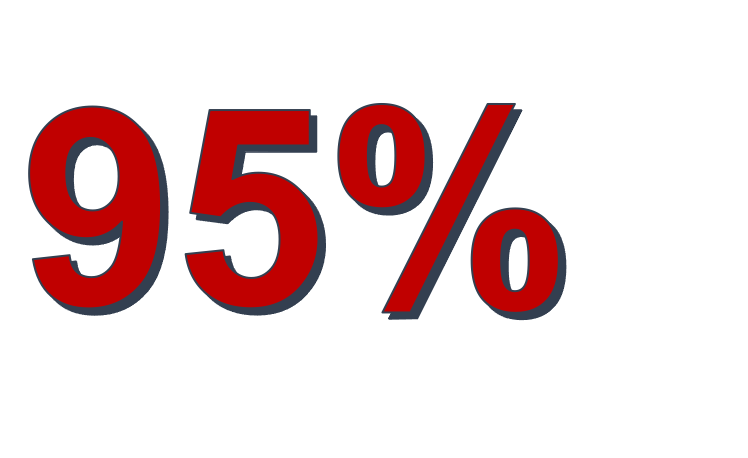
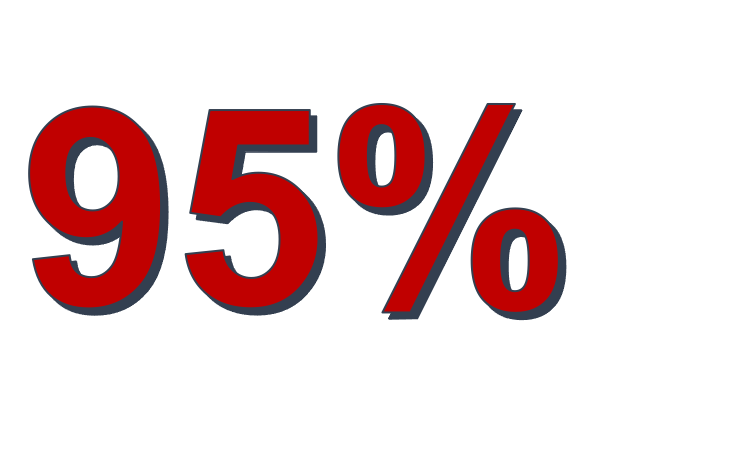
4. *Turn sentences into pictures and punchlines* In other words, edit down sentences to the bare minimum to be understood, make numbers Arabic instead of text and make them bigger and different colors than the text. A sentence like “Research shows that ninety-five percent of applications for community priority evaluation failed to gain approval,” could be represented on a slide as [image: A close up of a sign Description automatically generated] 5. *Notes in Notes Section* If you wish to include explanations in your slide deck, do it in the notes section. Then they are there for you to use and EVEN available to share by making a PDF of the Notes View, instead of the slide view! Another benefit of putting what you plan to say iin the Notes is that you can often share them with the interpreters in advance.
6. *Rehearse It’s the only way you’ll ever know how long your presentation is becoming or whether you’re going to stumble over a particular phrase or simply be at a loss for words. You can use the “Rehearse Timing,” feature under the Slide Show menu.*
_______________________________________________ At-Large mailing list At-Large@atlarge-lists.icann.org https://atlarge-lists.icann.org/mailman/listinfo/at-large
At-Large Official Site: http://atlarge.icann.org _______________________________________________ By submitting your personal data, you consent to the processing of your personal data for purposes of subscribing to this mailing list accordance with the ICANN Privacy Policy (https://www.icann.org/privacy/policy) and the website Terms of Service (https://www.icann.org/privacy/tos). You can visit the Mailman link above to change your membership status or configuration, including unsubscribing, setting digest-style delivery or disabling delivery altogether (e.g., for a vacation), and so on.

Great points, Jonathan BUT you are going to HATE my slide for the welcome which is a list of ICANN68 sessions I want them to go to (that I am going to talk to), and I'd even want them to screendump it so that they can refer to it when they are deciding what they might want to listen into next. Also, if you can't get to a session, and you don't have the time to actually listen to the recording, an interesting ppt (or video) without the audio doesn't tell anyone anything, *unless* the key point of your slide (minimal words, at least) is also there. Maureen On Sat, Jun 20, 2020 at 4:11 AM Jonathan Zuck <JZuck@innovatorsnetwork.org> wrote:
Folks,
At the request of “management,” I’m working on a class on PowerPoint and how to use it for Presentations, Videos and Course development but it will be quite a while before it is finished. In the meantime, Maureen asked if I would simply share some presentation tips so, here are some, in rough format. I hope they are helpful. JZ
*FACTS*
1. *People cannot listen and read at the same time.* Period. Both activities engage the language center of the brain. They will do only one and, more often than not, that's read. If they are reading the same slides you are, then why are you there?
2. *Slides should supplement the talk, not the other way around.* The big joke is that during EVERY Zoom meeting, people ask if the slides will be available. It's funny first because the answer is ALWAYS yes but, more importantly, your slides should not be able to stand on their own.
3. *People CAN absorb pictures and listen at the same time* Looking and listening engage different, complimentary, parts of the brain. The best analogy for a good presentation is a documentary film. They generally have narration and visuals. Imagine if Ken Burn's documentary about the American Civil War was a series of PowerPoints with titles and bullets!
*ADVICE ON SLIDES*
1.
*Only pictures and punchlines * 2.
*6 words or LESS * 3. *Bring People Back* Ideally, people spend more time looking at you than your slides. This is harder in the virtual world, for sure, especially if there's no video, but consider a blank slide or a picture of yourself as you explain something. Tell people to close their eyes, even!
4. *Turn sentences into pictures and punchlines* In other words, edit down sentences to the bare minimum to be understood, make numbers Arabic instead of text and make them bigger and different colors than the text. A sentence like “Research shows that ninety-five percent of applications for community priority evaluation failed to gain approval,” could be represented on a slide as [image: A close up of a sign Description automatically generated] 5. *Notes in Notes Section* If you wish to include explanations in your slide deck, do it in the notes section. Then they are there for you to use and EVEN available to share by making a PDF of the Notes View, instead of the slide view! Another benefit of putting what you plan to say iin the Notes is that you can often share them with the interpreters in advance.
6. *Rehearse It’s the only way you’ll ever know how long your presentation is becoming or whether you’re going to stumble over a particular phrase or simply be at a loss for words. You can use the “Rehearse Timing,” feature under the Slide Show menu.*
_______________________________________________ At-Large mailing list At-Large@atlarge-lists.icann.org https://atlarge-lists.icann.org/mailman/listinfo/at-large
At-Large Official Site: http://atlarge.icann.org _______________________________________________ By submitting your personal data, you consent to the processing of your personal data for purposes of subscribing to this mailing list accordance with the ICANN Privacy Policy (https://www.icann.org/privacy/policy) and the website Terms of Service (https://www.icann.org/privacy/tos). You can visit the Mailman link above to change your membership status or configuration, including unsubscribing, setting digest-style delivery or disabling delivery altogether (e.g., for a vacation), and so on.
Hence the suggestion about the notes section Jonathan Zuck Executive Director Innovators Network Foundation www.InnovatorsNetwork.org<http://www.InnovatorsNetwork.org> ________________________________ From: Maureen Hilyard <maureen.hilyard@gmail.com> Sent: Saturday, June 20, 2020 11:54:28 AM To: Jonathan Zuck <JZuck@innovatorsnetwork.org> Cc: At-Large Worldwide <at-large@atlarge-lists.icann.org> Subject: Re: [At-Large] Presentation Tips Great points, Jonathan BUT you are going to HATE my slide for the welcome which is a list of ICANN68 sessions I want them to go to (that I am going to talk to), and I'd even want them to screendump it so that they can refer to it when they are deciding what they might want to listen into next. Also, if you can't get to a session, and you don't have the time to actually listen to the recording, an interesting ppt (or video) without the audio doesn't tell anyone anything, unless the key point of your slide (minimal words, at least) is also there. Maureen On Sat, Jun 20, 2020 at 4:11 AM Jonathan Zuck <JZuck@innovatorsnetwork.org<mailto:JZuck@innovatorsnetwork.org>> wrote: Folks, At the request of “management,” I’m working on a class on PowerPoint and how to use it for Presentations, Videos and Course development but it will be quite a while before it is finished. In the meantime, Maureen asked if I would simply share some presentation tips so, here are some, in rough format. I hope they are helpful. JZ FACTS 1. People cannot listen and read at the same time. Period. Both activities engage the language center of the brain. They will do only one and, more often than not, that's read. If they are reading the same slides you are, then why are you there? 2. Slides should supplement the talk, not the other way around. The big joke is that during EVERY Zoom meeting, people ask if the slides will be available. It's funny first because the answer is ALWAYS yes but, more importantly, your slides should not be able to stand on their own. 3. People CAN absorb pictures and listen at the same time Looking and listening engage different, complimentary, parts of the brain. The best analogy for a good presentation is a documentary film. They generally have narration and visuals. Imagine if Ken Burn's documentary about the American Civil War was a series of PowerPoints with titles and bullets! ADVICE ON SLIDES 1. Only pictures and punchlines 2. 6 words or LESS 3. Bring People Back Ideally, people spend more time looking at you than your slides. This is harder in the virtual world, for sure, especially if there's no video, but consider a blank slide or a picture of yourself as you explain something. Tell people to close their eyes, even! 4. Turn sentences into pictures and punchlines In other words, edit down sentences to the bare minimum to be understood, make numbers Arabic instead of text and make them bigger and different colors than the text. A sentence like “Research shows that ninety-five percent of applications for community priority evaluation failed to gain approval,” could be represented on a slide as [A close up of a sign Description automatically generated] 5. Notes in Notes Section If you wish to include explanations in your slide deck, do it in the notes section. Then they are there for you to use and EVEN available to share by making a PDF of the Notes View, instead of the slide view! Another benefit of putting what you plan to say iin the Notes is that you can often share them with the interpreters in advance. 6. Rehearse It’s the only way you’ll ever know how long your presentation is becoming or whether you’re going to stumble over a particular phrase or simply be at a loss for words. You can use the “Rehearse Timing,” feature under the Slide Show menu. _______________________________________________ At-Large mailing list At-Large@atlarge-lists.icann.org<mailto:At-Large@atlarge-lists.icann.org> https://atlarge-lists.icann.org/mailman/listinfo/at-large At-Large Official Site: http://atlarge.icann.org _______________________________________________ By submitting your personal data, you consent to the processing of your personal data for purposes of subscribing to this mailing list accordance with the ICANN Privacy Policy (https://www.icann.org/privacy/policy) and the website Terms of Service (https://www.icann.org/privacy/tos). You can visit the Mailman link above to change your membership status or configuration, including unsubscribing, setting digest-style delivery or disabling delivery altogether (e.g., for a vacation), and so on.

Thanks Jonathan For these nice tips. Fact 2- is actually funny and happens all the time. Will be waiting for the class . Kind regards Esther Patricia Akello On Sat, 20 Jun 2020 at 17:11, Jonathan Zuck <JZuck@innovatorsnetwork.org> wrote:
Folks,
At the request of “management,” I’m working on a class on PowerPoint and how to use it for Presentations, Videos and Course development but it will be quite a while before it is finished. In the meantime, Maureen asked if I would simply share some presentation tips so, here are some, in rough format. I hope they are helpful. JZ
*FACTS*
1. *People cannot listen and read at the same time.* Period. Both activities engage the language center of the brain. They will do only one and, more often than not, that's read. If they are reading the same slides you are, then why are you there?
2. *Slides should supplement the talk, not the other way around.* The big joke is that during EVERY Zoom meeting, people ask if the slides will be available. It's funny first because the answer is ALWAYS yes but, more importantly, your slides should not be able to stand on their own.
3. *People CAN absorb pictures and listen at the same time* Looking and listening engage different, complimentary, parts of the brain. The best analogy for a good presentation is a documentary film. They generally have narration and visuals. Imagine if Ken Burn's documentary about the American Civil War was a series of PowerPoints with titles and bullets!
*ADVICE ON SLIDES*
1.
*Only pictures and punchlines * 2.
*6 words or LESS * 3. *Bring People Back* Ideally, people spend more time looking at you than your slides. This is harder in the virtual world, for sure, especially if there's no video, but consider a blank slide or a picture of yourself as you explain something. Tell people to close their eyes, even!
4. *Turn sentences into pictures and punchlines* In other words, edit down sentences to the bare minimum to be understood, make numbers Arabic instead of text and make them bigger and different colors than the text. A sentence like “Research shows that ninety-five percent of applications for community priority evaluation failed to gain approval,” could be represented on a slide as [image: A close up of a sign Description automatically generated] 5. *Notes in Notes Section* If you wish to include explanations in your slide deck, do it in the notes section. Then they are there for you to use and EVEN available to share by making a PDF of the Notes View, instead of the slide view! Another benefit of putting what you plan to say iin the Notes is that you can often share them with the interpreters in advance.
6. *Rehearse It’s the only way you’ll ever know how long your presentation is becoming or whether you’re going to stumble over a particular phrase or simply be at a loss for words. You can use the “Rehearse Timing,” feature under the Slide Show menu.*
_______________________________________________ At-Large mailing list At-Large@atlarge-lists.icann.org https://atlarge-lists.icann.org/mailman/listinfo/at-large
At-Large Official Site: http://atlarge.icann.org _______________________________________________ By submitting your personal data, you consent to the processing of your personal data for purposes of subscribing to this mailing list accordance with the ICANN Privacy Policy (https://www.icann.org/privacy/policy) and the website Terms of Service (https://www.icann.org/privacy/tos). You can visit the Mailman link above to change your membership status or configuration, including unsubscribing, setting digest-style delivery or disabling delivery altogether (e.g., for a vacation), and so on.
-- Regards Esther Patricia
participants (10)
-
 Eduardo Diaz
 -
 Evan Leibovitch
 -
 Jonathan Zuck
 -
 Marita Moll
 -
 Maureen Hilyard
 -
 Niran Beharry
 -
 Patricia Esther Akello
 -
 Sarah Kiden
 -
 Seth M. Reiss
 -
 sylvia@prontocl.com.br